
WordPress shortcodes provide a simple way to add dynamic functionality to posts, pages and other areas of a website without having to write PHP directly inside the content editor.
Whether you want to display custom messages, create reusable content sections or execute a custom function, shortcodes make it possible to achieve this with just a few lines of PHP.
Although many plugins provide their own shortcodes, WordPress also allows developers to create custom shortcodes to suit specific project requirements.
In this tutorial, we’ll explore how to create custom WordPress shortcodes using PHP, pass attributes to them and build reusable functionality.
What Are WordPress Shortcodes?
A shortcode is a small piece of text enclosed in square brackets that WordPress recognises and replaces with generated content.
For example:
[current_year]When WordPress processes this shortcode, it executes the associated PHP function and displays its returned value.
Shortcodes are particularly useful when you need to reuse functionality across multiple pages without duplicating code.
1. Creating Your First Custom Shortcode
Let’s start with a simple example.
We’ll create a shortcode that displays a welcome message.
Add the following code to your active child theme’s functions.php file or a custom plugin.
function custom_welcome_shortcode() {
    return '<p>Welcome to our website!</p>';
}

add_shortcode('welcome_message', 'custom_welcome_shortcode');
You can now insert the shortcode into any page or post:
[welcome_message]WordPress will execute the custom_welcome_shortcode() function and display:
Welcome to our website!
Understanding the Code
There are two important parts:
custom_welcome_shortcode()is the PHP function responsible for generating the content.add_shortcode()registers the function with WordPress and associates it with the shortcode name.
The first parameter of add_shortcode() is the shortcode tag, while the second is the callback function.
One important thing to remember is that shortcode callbacks should return their output rather than echoing it.
2. Creating a Shortcode With Attributes
You can make shortcodes more flexible by allowing users to pass attributes.
For example, instead of displaying the same welcome message everywhere, you can allow users to specify a name.
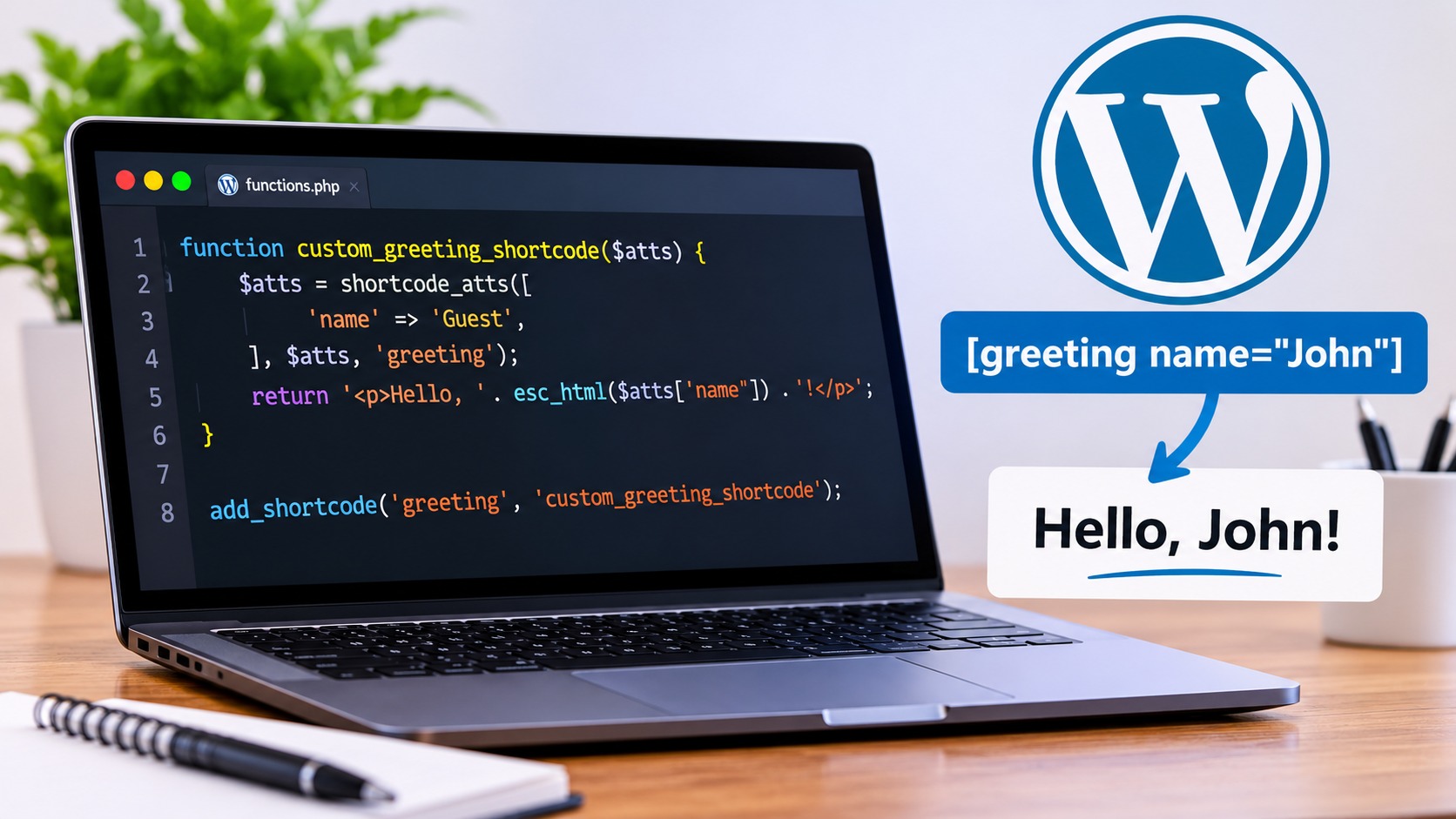
function custom_greeting_shortcode($atts) {

    $atts = shortcode_atts(
        array(
            'name' => 'Guest',
        ),
        $atts,
        'greeting'
    );

    return '<p>Hello, ' . esc_html($atts['name']) . '!</p>';
}

add_shortcode('greeting', 'custom_greeting_shortcode');
You can now use the shortcode like this:
[greeting name="John"]Output:
Hello, John!
You can also use it without an attribute:
[greeting]In that case, WordPress will use the default value, which is Guest.
How shortcode_atts() Works
The shortcode_atts() function merges the attributes supplied by the user with your predefined defaults.
In this example:
nameis the supported attribute.Guestis its default value.greetingidentifies the shortcode.
We also use esc_html() to safely escape the name before displaying it as HTML text.
3. Creating a Shortcode With Multiple Attributes
You can define as many attributes as your functionality requires.
Let’s create a shortcode that displays a custom notification box with a message, background colour and text colour.
function custom_notification_shortcode($atts) {

    $atts = shortcode_atts(
        array(
            'message' => 'This is a notification.',
            'background' => '#f0f0f0',
            'color' => '#333333',
        ),
        $atts,
        'notification'
    );

    $background = sanitize_hex_color($atts['background']);
    $color = sanitize_hex_color($atts['color']);

    $background = $background ?: '#f0f0f0';
    $color = $color ?: '#333333';

    return sprintf(
        '<div style="background-color:%1$s; color:%2$s; padding:15px; border-radius:5px;">%3$s</div>',
        esc_attr($background),
        esc_attr($color),
        esc_html($atts['message'])
    );
}

add_shortcode('notification', 'custom_notification_shortcode');
Use the shortcode as follows:
[notification message="Your order has been received!" background="#e8f5e9" color="#2e7d32"]This will display a notification box with a green background and dark green text.
Why use sanitize_hex_color()?
Since users can supply attribute values, it’s important to validate them before using them in your output.
sanitize_hex_color() ensures that the supplied colour is a valid hexadecimal colour value.
We then use esc_attr() when inserting the validated colours into HTML attributes.
4. Creating a Shortcode That Accepts Content
So far, our shortcodes have generated content entirely from PHP.
However, WordPress also supports enclosing shortcodes, which allow you to pass content between opening and closing shortcode tags.
Let’s create a reusable content box.
function custom_content_box_shortcode($atts, $content = null) {

    $atts = shortcode_atts(
        array(
            'title' => 'Information',
        ),
        $atts,
        'content_box'
    );

    $output = '<div class="custom-content-box">';

    $output .= '<h3>' . esc_html($atts['title']) . '</h3>';

    $output .= '<div class="content-box-body">';
    $output .= wp_kses_post($content);
    $output .= '</div>';

    $output .= '</div>';

    return $output;
}

add_shortcode('content_box', 'custom_content_box_shortcode');
You can now use it inside your WordPress content:
[content_box title="Important Notice"]
This is a reusable content box. You can include <strong>formatted text</strong> inside it.
[/content_box]
The output will contain a title and a content area.
Notice that we used wp_kses_post() instead of esc_html() for the enclosed content. This allows safe HTML commonly used in WordPress posts, such as paragraphs, links and bold text.
5. Adding CSS to Your Custom Shortcode
You can style your shortcode output using CSS.
For the content box example above, add the following CSS to your child theme’s stylesheet or the WordPress Additional CSS section.
.custom-content-box {
    padding: 20px;
    margin: 20px 0;
    background: #f8f9fa;
    border: 1px solid #e5e7eb;
    border-radius: 8px;
}

.custom-content-box h3 {
    margin-top: 0;
    margin-bottom: 12px;
    font-size: 20px;
}

.content-box-body {
    line-height: 1.7;
}
You can now reuse this content box across multiple pages without writing the HTML and CSS repeatedly.
6. Where Should You Register Custom Shortcodes?
There are two common approaches to registering custom shortcodes.
Using a child theme’s functions.php
For functionality closely related to a particular theme, you can register your shortcode in the child theme’s functions.php file.
However, remember that theme-specific functionality may stop working when you switch themes.
Creating a custom plugin
If you want your shortcode to remain available regardless of the active theme, creating a custom plugin is generally the better approach.
This is particularly useful for functionality that is part of a website’s core features rather than its visual presentation.
Best Practices When Creating WordPress Shortcodes
When developing custom shortcodes, keep the following points in mind:
- Always return output instead of echoing it.
- Use unique shortcode names to avoid conflicts with existing plugins and themes.
- Validate and sanitize user-supplied attributes.
- Escape output appropriately using functions such as
esc_html(),esc_attr()andwp_kses_post(). - Keep complex functionality in separate, reusable PHP functions.
- Avoid placing large amounts of CSS or JavaScript directly inside shortcode callbacks.
Conclusion
Custom shortcodes are a simple but powerful WordPress development feature.
They allow developers to create reusable functionality that can be inserted into posts and pages without requiring users to understand PHP.
From simple text replacements to more advanced content components, shortcodes can help make WordPress websites more flexible and easier to maintain.
If you’re developing custom WordPress themes or plugins, understanding how to create and register shortcodes is a useful skill worth mastering.
